
New task
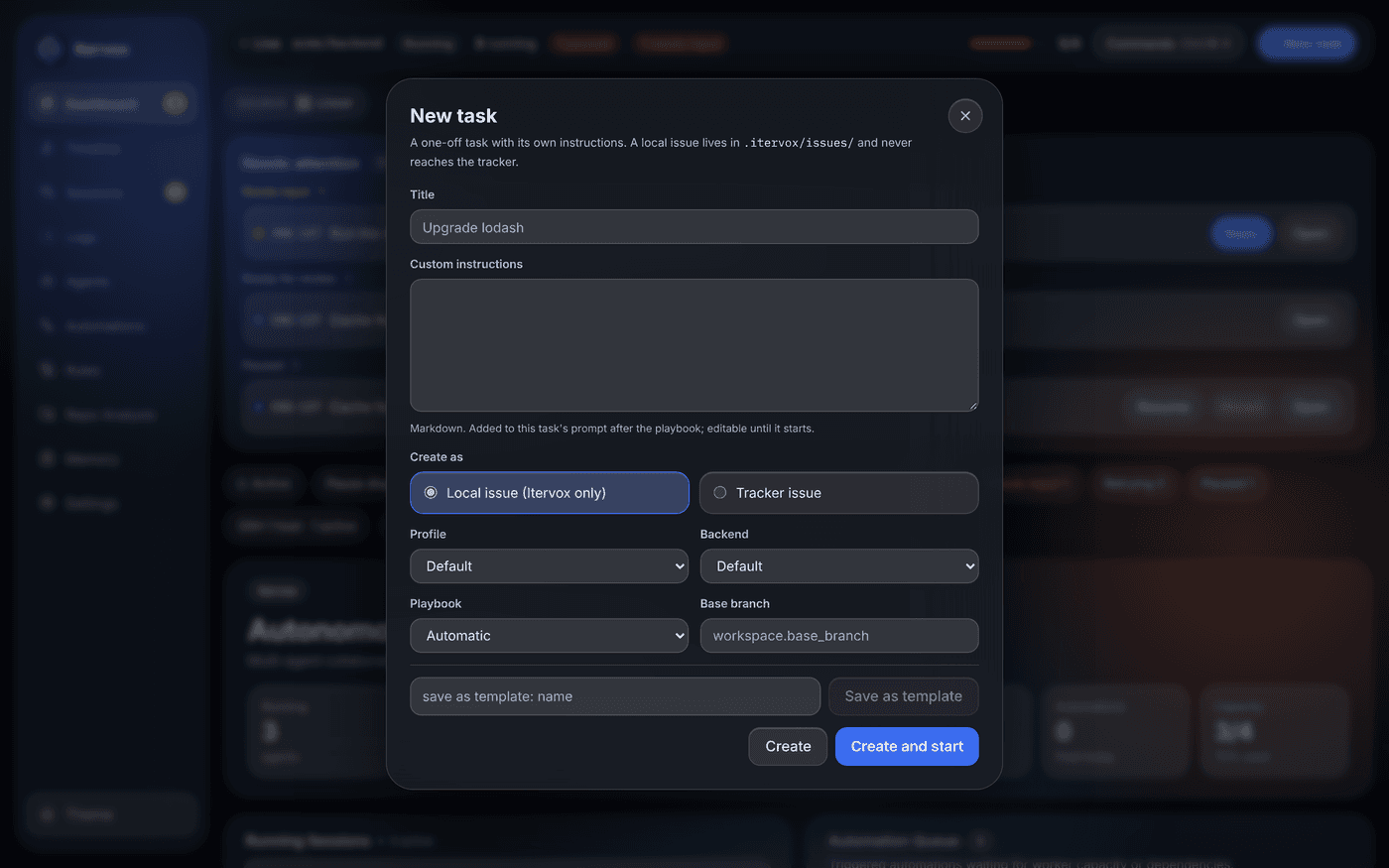
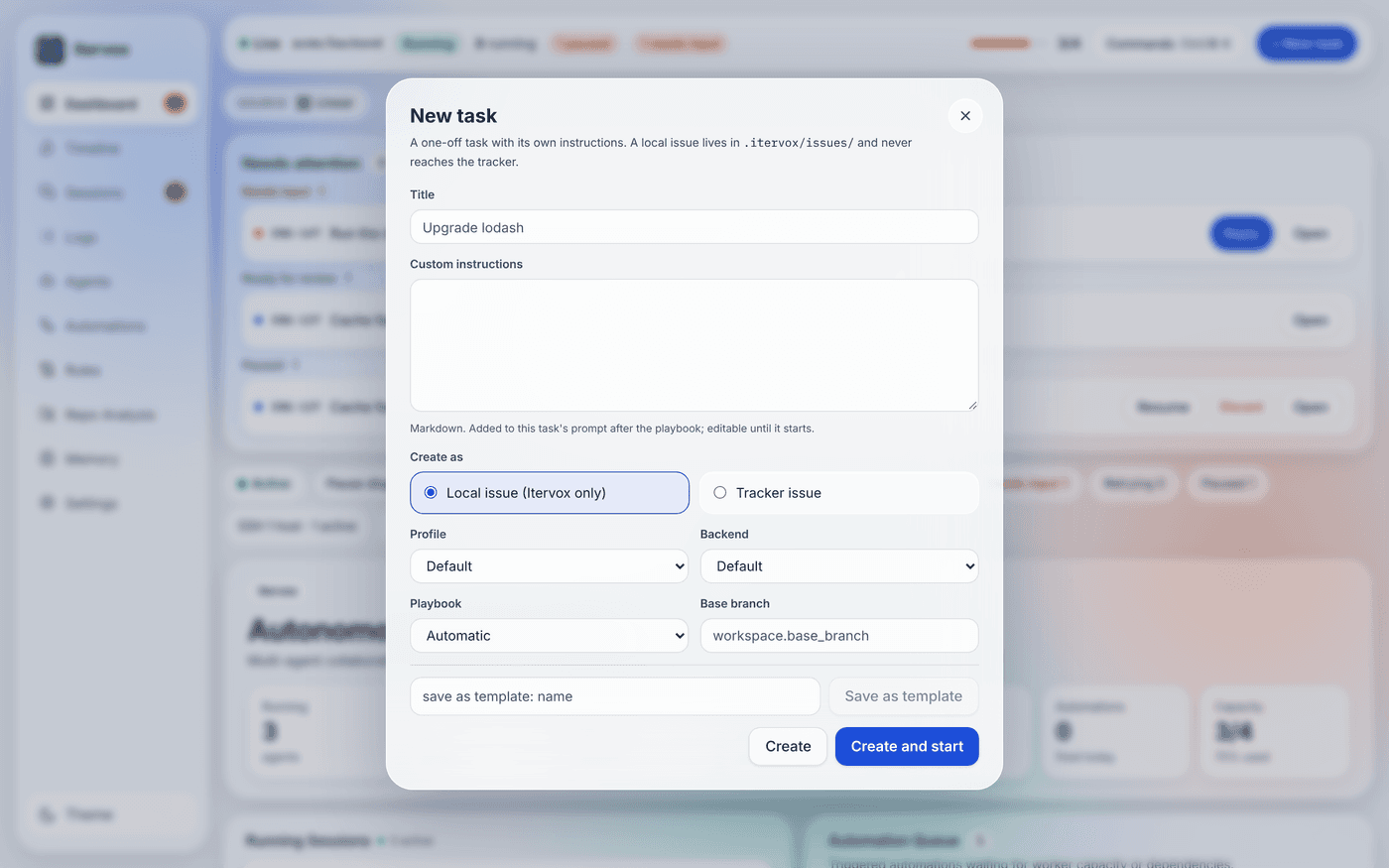
Work usually starts from a tracker issue. A quick, one-off task (“upgrade lodash”, “add tests for the parser”) should not need an issue first and a wait for the next poll, and some instructions apply to one task only. New task creates the task, keeps its own instructions with it, and starts it through the same path as every other issue.
Where to start one
Section titled “Where to start one”- Dashboard: the + New task button above the issue board (operator scope).
- Mac app: New Task… in each project’s submenu of the tray menu, and in the Projects menu (⇧⌘N, for the project in front). Both open that project’s dashboard with the form open; from the tray, a window already showing the project opens the form in place.
- Terminal:
itervox task "<title>"on the machine running the daemon, or with--projectthrough the hub. See the CLI reference.
itervox task "Upgrade lodash" --instructions @notes.md --startWhat you fill in
Section titled “What you fill in”| Field | Meaning |
|---|---|
| Title | Required. The issue title. |
| Custom instructions | Markdown for this task only. See Custom instructions. |
| Create as | Local issue (the default) or Tracker issue. See Local or tracker. |
| Profile, backend | Optional. They become the issue’s profile and backend overrides, as if you had picked them on the issue. |
| Playbook | Optional: a playbook, or none. Becomes the issue’s playbook override. Empty: the automatic choice. |
| Base branch | Optional. The branch the task’s worktree starts from and its pull request targets, instead of workspace.base_branch. The prompt tells the agent (gh pr create --base <branch>). A branch that does not exist falls back to workspace.base_branch. |
Create creates the task in the first of tracker.active_states; the next poll picks it up. Create and start (--start) also asks the daemon for a dispatch pass at once. Either way the task is started by the normal dispatch path, never around it: it waits for a free slot and is held by paused dispatch, guardrails, budgets, dependencies and backend limits like any other issue.
Local or tracker
Section titled “Local or tracker”Local issue writes an issue file in .itervox/issues/, the local tracker’s directory, and the task never reaches Linear or GitHub:
- With
tracker.kind: local, it is an ordinary issue file (ITX-12.md; withtracker.syncon, it syncs like any other). - With
tracker.kind: linearorgithub, Itervox reads the same directory next to the tracker: tasks are namedTASK-1,TASK-2, … and appear on the board, in dispatch and in the API with the tracker’s issues. Moving one, commenting on it or finishing its run writes its file, never the tracker. The tracker’s scope and filter do not apply to tasks. You can also add aTASK-<n>.mdfile by hand.
Tracker issue creates the issue in the project’s Linear project or GitHub repository, like an agent’s create-issue action: the team sees it, and its description says the instructions are kept by Itervox. On Linear the new issue takes its team from an issue already on the board, so a Linear board with no issue at all cannot create one; create a local task instead.
The memory tracker (itervox demo) has no directory: only Tracker issue is offered there.
Custom instructions
Section titled “Custom instructions”The instructions are stored with the task (in .itervox/task_specs.json, by identifier) and added to the prompt of its runs as a block right after the playbook:
…the profile's INSTRUCTIONS.md…
## Playbook: bug-fix…
## Task instructions
Upgrade lodash to 4.17.21, run `make test` and fix what breaks.
Like the playbook, the block goes to worker runs only; a reviewer or automation run of the task keeps the prompt it had. The block is a prompt digest component, task, when present: run history shows which instructions produced a run, and a run without task instructions keeps the digest it had.
The issue detail shows the instructions under Task instructions. An operator can edit them until the task first starts; from then on they are frozen, the record of what the run was given.
Saved templates
Section titled “Saved templates”A task you repeat can be saved as a template: Save as template at the bottom of the form (admin scope, since it writes a file), or a file you write yourself. Templates are Markdown files in .itervox/tasks/<name>.md, committed with the code (itervox init --update adds !.itervox/tasks/ to a root .gitignore that ignores .itervox/):
---title: Upgrade {{package}} to {{version}}description: Bump one dependency and fix what breaks.profile: implementerplaybook: featurebackend: claudebase: main---
Upgrade {{package}} to {{version}}. Run the full test suite and fixevery failure the upgrade causes. Do not change unrelated code.| Front matter | Meaning |
|---|---|
title | Required. The task title. |
description | Shown next to the name in the form. |
profile, backend, playbook, base | The fields of the same name; optional. |
The body is the custom instructions. A name is lower-case letters, digits, - and _.
{{name}} placeholders (letters, digits, _ and -) in the title and the instructions are filled when you create the task: the form shows an input for each, and the CLI takes --var key=value. A placeholder without a value is refused, so an agent never sees literal braces.
itervox task --template upgrade --var package=lodash --var version=4.17.21 --startitervox task --templates # list them, with their placeholdersFields you give on the command line, or change in the form, win over the template’s.
POST /api/v1/tasks (operator) creates a task; PUT /api/v1/tasks/{identifier}/instructions (operator) edits its instructions until it starts; GET /api/v1/task-templates (viewer) lists the templates; POST, PUT and DELETE /api/v1/task-templates/{name} (admin) manage them. See the API reference.