
Desktop app (macOS, Linux, Windows)
brew install --cask vnovick/tap/itervox-app The app’s Homebrew cask comes with the first signed release; until then, use the .dmg.
brew install vnovick/tap/itervox Also as an .msi package for managed installs.
AppImage arm64 .deb x86_64 · arm64
brew install vnovick/tap/itervox The Itervox desktop app lives in the menu bar on a Mac and in the system tray on Linux and Windows. It lists every project with a running daemon on your computer, starts, stops and restarts daemons, raises a notification when an agent needs your input or a run fails, and opens a project’s dashboard in a window. It needs no terminal: the daemon ships inside the app.
This guide describes the Mac app; the tray menu, the dashboard windows, the Sessions window and remote daemons work the same on Linux and Windows, and those sections list what differs (install, the command-line tool, Start at Login, updates). Platform differences lists every macOS-only integration with its Linux and Windows counterpart. This page used to be the Mac app guide; its old address still leads here.
It also reaches daemons on other machines — a cloud VM, a build box — through GCP IAP or SSH tunnels it runs and keeps up for you (Remote daemons).
It is a thin Tauri shell: the app bundle contains the same itervox binary you run from a terminal, and each dashboard window shows the dashboard that project’s daemon serves. Nothing about a project’s configuration lives in the app.
Install
Section titled “Install”First pick what you need:
| You want | Install | You get |
|---|---|---|
| Itervox on a server, over SSH, or only in a terminal | brew install vnovick/tap/itervox (or a release binary) | The itervox command and daemon |
| The Mac app | A release disk image, Homebrew once a signed release has published the cask, or a build from source (below) | Itervox.app, with its own itervox daemon inside |
The app does not need the command-line formula: it runs the daemon bundled in it. For the itervox command as well, use the app’s Install Command-Line Tool… menu item, which links that bundled daemon onto your PATH and follows the app’s updates. If you also install the formula, you have two itervox binaries and the one earlier on your PATH wins; keep only one.
None of the ways below needs an Apple ID or an Apple developer account.
Signed or unsigned
Section titled “Signed or unsigned”The release workflow (.github/workflows/desktop-release.yml) signs the Mac app with a Developer ID and notarizes it only when the maintainer’s Apple signing secrets are configured. A signed build is always notarized as well: the workflow refuses to ship a signed build it cannot notarize. Without those secrets it builds the same app unsigned, with a warning, and names the files -unsigned. The file name tells you which you have:
| Release file | Signed | On first open |
|---|---|---|
Itervox_<version>_universal.dmg | Developer ID, notarized and stapled | Opens without a Gatekeeper warning |
Itervox_<version>_universal-unsigned.dmg | Ad hoc only (no developer identity) | Gatekeeper blocks it; see Opening an unsigned build |
An unsigned build is still signed ad hoc, with no developer identity, so its bundle is sealed: macOS treats a downloaded copy as coming from an unidentified developer and offers Open Anyway, rather than reporting it as damaged.
The standalone command-line zip on the release follows the same rule: itervox_<version>_darwin_universal.zip is signed and notarized, itervox_<version>_darwin_universal-unsigned.zip is not.
An unsigned release publishes no updater manifest and no Homebrew cask, so an app installed from it does not update itself.
Three ways to install
Section titled “Three ways to install”- Disk image. Download the
.dmgfrom the release on the releases page, open it and drag Itervox to Applications. It is a universal app, for Apple silicon and Intel Macs, macOS 11 or later. An-unsigneddisk image needs one extra step on first open: Opening an unsigned build. - Homebrew.
brew install --cask vnovick/tap/itervox-appworks only once a signed release has published the cask. The release workflow writesCasks/itervox-app.rbin the tap only for a notarized, non-pre-release build, after its disk image is on the release; an unsigned release leaves the tap untouched. Until a signed release has done that, the cask does not exist and the command fails; use the disk image. The cask is nameditervox-appso thatvnovick/tap/itervoxstays the command-line formula. It is markedauto_updates, so a plainbrew upgradeleaves it alone andbrew upgrade --cask --greedy itervox-appupgrades it through Homebrew. - From source.
make desktopin a checkout of the repository (Build it from source). A build made on your own Mac is not quarantined, so Gatekeeper opens it without signing or notarization.
Open the app from Applications: an app opened from the disk image or the Downloads folder runs from a read-only copy and cannot update itself or install the command-line tool.
The app has no Dock icon: look for the I// mark in the menu bar.
First launch
Section titled “First launch”The first time the app starts, with no projects added and no remote connections, it opens a Welcome to Itervox window as well as its menu-bar icon. The window says where the app lives, has an Add Project… button (choose a project’s WORKFLOW.md; run itervox init in the project first if it has none), and lists the projects the app knows with Start for a stopped project and Open for a running one. Open shows the project’s dashboard and closes the welcome window. Once you have added a project (or a remote), later launches open only the menu-bar icon, as before.
Can’t see the icon? On a MacBook with a notch, a full menu bar can put the icon behind the notch, so the app looks as if it never started. Hide some other menu-bar items to make room. Opening Itervox again while it runs (from Finder, Spotlight or the Applications folder) always shows a window: the window you had minimized, else the dashboard of the first project in tab order with a running daemon, else the welcome window with your projects and their Start buttons.
The welcome window is an app-local page like the project tabs: it has no access to the network or to the app, no token ever reaches it, and its buttons only ask the app to run its own Add Project…, Start or Open Dashboard for a project it listed. The Dock icon shows while it is open, as for any app window.
Opening an unsigned build
Section titled “Opening an unsigned build”macOS blocks an unsigned app that carries the quarantine flag a download gets: an -unsigned release file, or a build from source copied from another Mac. On macOS 15 and later, right-click → Open no longer offers a way past this. Use one of these instead:
-
Open Anyway (recommended). Open Itervox once from Applications and dismiss the warning. Then open System Settings → Privacy & Security, scroll to Security, and choose Open Anyway next to the message about Itervox. Confirm with your password or Touch ID, then choose Open. After that, it opens normally.
-
Remove the quarantine flag in a terminal:
Terminal window xattr -dr com.apple.quarantine /Applications/Itervox.app
Updates
Section titled “Updates”The app updates itself only when both of these hold:
- it is a signed release, and
- that release published an updater manifest (
latest.json, with an update archive signed by the release’s updater key), and the app was built with the matching public key inplugins.updater.pubkeyofdesktop/src-tauri/tauri.conf.json.
The workflow publishes the manifest only for a signed build with an updater key. The app carries the project’s updater public key (since 0.3.3), so it checks for updates, but an unsigned release publishes no manifest: until a signed release is published there is nothing to install, and the menu reports the last check as failed. Until then, download new versions by hand: quit the app, install the new disk image over the old one in Applications (or run brew upgrade --cask --greedy itervox-app once the cask exists), and Restart each project to move its daemon to the new version. Running daemons keep running through the reinstall on the version they were started with.
When a release does carry both, the app checks for a new release 10 seconds after it starts and every 6 hours; Check for Updates… in the menu checks at once. When one is available the menu shows Update available — Install and Restart with the new version; choosing it downloads the update, checks its signature, replaces the app and relaunches it.
- The daemon bundled in the app is updated with it.
- Daemons that are running keep running through the update — no agent is interrupted — on the version they were started with. Restart a project to move its daemon to the new version.
- Pre-releases are never offered.
- Installed with Homebrew, the app updates itself the same way; Homebrew picks up the new version at your next
brew upgrade --greedy.
Command-line tool
Section titled “Command-line tool”Install Command-Line Tool… in the menu makes the bundled daemon available as itervox in a terminal: it creates a symlink /usr/local/bin/itervox (or ~/.local/bin/itervox when /usr/local/bin is not writable) that points into the app. That symlink is the command-line tool the app manages, and because it points into the app, it is updated whenever the app is. The menu then shows where it is installed. An itervox the app did not create — from Homebrew, or a binary you copied — is left alone; the app installs into the other location, or tells you both are taken. If you move the app, choose Repair Command-Line Tool….
A standalone universal itervox is also on each release for machines without the app; it does not update itself. Like the app, it is signed and notarized (itervox_<version>_darwin_universal.zip) only on a release built with the signing secrets, and named -unsigned otherwise (Install).
Build it from source
Section titled “Build it from source”You need, once:
- Xcode Command Line Tools:
xcode-select --install - Rust: rustup
- Go (the version in
go.mod) and Node.js 20 with pnpm 10 — the same tools as for building the daemon
Then, in a checkout of the repository:
make desktopopen desktop/src-tauri/target/release/bundle/macos/Itervox.appmake desktop builds the dashboard, the daemon for both Mac architectures (placed as the app’s sidecar), installs the Tauri CLI on first use, and bundles Itervox.app and a .dmg for your Mac’s architecture under desktop/src-tauri/target/release/bundle/. Copy the app to /Applications if you like. A build from source is unsigned, and needs no Apple ID: macOS only checks signatures of apps that carry the quarantine flag a download gets, and an app you built on your own Mac has none, so it opens like any other. (Copied to another Mac it is quarantined there; see Troubleshooting.) It checks for updates like a release when desktop/src-tauri/tauri.conf.json carries the release update key (plugins.updater.pubkey), and offers the newer signed release; without the key its menu shows Updates off and it never checks. How releases are signed, notarized and published: docs/release-mac.md.
Projects
Section titled “Projects”The menu lists, sorted by name:
- every daemon
itervox status --all --jsonreports — started by the app, from a terminal, or by launchd; - every project you added with Add Project… (choose its
WORKFLOW.md), also while its daemon is stopped.
Each project shows its state and running agents, for example running · 2 agents · 1.2 GB · 1 needs input (the memory its live agent runs hold, from system visibility). A project whose workspace disk is below workspace.disk_warn_free_gb adds a line under the menu’s header, for example ⚠ web-app: low disk — 3.2 GB free. The list refreshes every 3 seconds while any daemon has an agent running or retrying, a question waiting, or a start or stop in progress, and every 15 seconds when everything is idle; pointing at or clicking the menu-bar icon, and focusing an app window, refresh it at once. The number next to the menu-bar icon counts the issues waiting for your input across projects.
To do as little as possible while idle, the app reads the daemon registry (~/.itervox/daemons/) itself instead of running itervox status --all --json on every refresh. It still runs that command at start, when you open the menu (at most every 30 seconds) or choose Refresh Now, and whenever the registry holds a format it does not know, so daemons started by an itervox older than the registry still show. Each daemon is read over one kept-alive connection: a small GET /api/v1/summary with the last ETag, and the full state only when the daemon answers that something changed (GET /summary).
When a profile points its agent at a model server on your computer (ANTHROPIC_BASE_URL=http://127.0.0.1:8000 claude), the menu adds a Model servers section with each server’s state and the GPU, the end of the project tabs shows them (hover for each server), and the app notifies you when a server stops answering and when it is back. See Local models.
With a hub (v0.2.9)
Section titled “With a hub (v0.2.9)”When an itervox hub runs on your Mac (it publishes its address in ~/.itervox/daemons/hub.lock), the app uses it instead of reading each project on its own:
- One connection. The app holds one
GET /hub/api/v1/eventsstream to the hub for every local project, with a viewer hub token it creates for itself on first use (itervox-desktop, kept in the Keychain). The same stream carries the member count, the merged feed’s head and the hub’s desktop notifications. - One read for every member. Each refresh reads
GET /hub/api/v1/projectsonce — every member’s summary is in it — and the app stops polling the hub’s members itself. When the hub reports a change in its member set or a member’s summary, the stream wakes the refresh at once; projects the hub covers no longer count toward the 3-second busy interval, so with only hub members the app refreshes on those events and every 15 seconds. The hub reads its members’ summaries every 10 seconds, so a project’s counts in the menu can lag that much; the notifications themselves arrive at once. - Everyone else as before. A daemon started with
--no-hub(orhub.enabled: false), a daemon from an itervox older than the hub, and a member the hub cannot read right now are polled exactly as above. - Fallback. If the hub stops — its stream ends or its projects list does not answer — the app polls every daemon again at once and raises its own alerts, until the next daemon takes over the hub (about a second later) and the app reconnects. A notification asked during the switch can show twice: once from the hub, once from the app’s own alerts.
The menu shows the hub under its header: Hub · 3 projects while the app is connected, Hub: connecting…, Hub unreachable — polling each project, or Hub: not running — each project polled. Below it:
- Open Hub Dashboard opens the hub’s page (
/hub/) in a window: every project on this Mac, each opening its own dashboard through the hub. - Phone… opens the hub’s Phones view with the pairing QR code: scan it with your phone to pair it.
- Notification Settings… opens the hub’s notification settings — the per-project routes, snoozes and digests that decide which native notifications this app shows.
The Phones and Notifications views are admin views of the hub, so the hub window opens with a second hub token the app creates the first time you choose one of these items (itervox token create --hub --name itervox-desktop-admin --scope admin, kept in the Keychain as itervox-hub-admin; revoke it with itervox token revoke <id> --hub and the app makes a new one when you next open the window). The long-lived events stream keeps the viewer token. All three items are disabled while the app is not connected to a hub.
For a daemon the app started, the app reads the state with that daemon’s token. For a daemon started from a terminal, it uses the auto-generated token in the daemon’s token_file when there is one (same user, mode 0600). A daemon with a pinned ITERVOX_API_TOKEN shows token required: the app cannot read its state, and its dashboard asks for the token.
Start, stop, restart
Section titled “Start, stop, restart”Each project’s submenu has Start, Stop and Restart; the menu shows starting… or stopping… until the next refresh confirms the change.
- Start runs the bundled daemon with
--workflow <path>in the project directory, headless, with a freshly generated supervisor token (ITERVOX_SUPERVISOR_TOKEN, see Running under a supervisor). The token is stored in your login Keychain (servicedev.itervox.desktop.supervisor-token, account = theWORKFLOW.mdpath) and never put on a command line or in a file. If the daemon exits during startup — an invalidWORKFLOW.md, a port in use — the project shows the last line it printed; Show Daemon Output opens the full output. - Stop sends
SIGTERMto the daemon’s registered pid. The daemon drains in-flight agent turns for up to--shutdown-grace(30 s by default) before it exits. If it is still draining after 45 s the project says so; choose Stop again to stop at once. - Restart is Stop, then Start.
Daemons started by the app are detached: they keep running when you quit the app (Quit Itervox never stops an agent), and the app finds them again, and still holds their tokens, when it starts. A project you start or stop from the app stays in the list while stopped.
Two projects whose WORKFLOW.md names the same server.port cannot run at once; leave server.port unset (0) to let each daemon pick a free port.
Pause all agents
Section titled “Pause all agents”Pause all agents pauses dispatch on every running local daemon whose state the app can read (#213): running agents continue, and nothing new starts — no dispatch, retries, reviewers, automations or input resumes — until you resume. Each paused project’s line shows dispatch paused; once every daemon is paused the item reads Resume all agents. The pause survives a daemon restart. See Pause dispatch & event feed.
Notifications
Section titled “Notifications”The app raises a notification when, in a project whose state it can read:
- an issue starts waiting for input (an agent asked a question), or
- an agent run fails (or stalls).
Clicking the notification opens that issue in the project’s dashboard (<dashboard>/?issue=<identifier>). The last few events are also listed under Recent in the menu. Only events that happen after the app started notify, each once, so relaunching the app or restarting a daemon does not replay old questions.
The first notification may ask for permission; you can change it later in System Settings → Notifications → Itervox.
With a hub (v0.2.9). When an itervox hub runs on your Mac, the app takes its notifications from the hub instead: one connection to the hub’s event stream for every local project, following the hub’s notification settings (per project and kind, snooze, digests of low-priority events). The app creates a viewer hub token for this on first use (itervox-desktop, kept in the Keychain; revoke it with itervox token revoke <id> --hub and the app makes a new one). Clicking a hub notification opens the hub dashboard at that issue. While the hub’s stream is up, the per-project alerts above are not raised for local projects; remote daemons notify as before. If the hub stops, the app goes back to its own alerts.
Dashboard windows
Section titled “Dashboard windows”Open Dashboard opens the project’s dashboard in a window (the Dock icon shows while a window is open), or brings forward the window already showing it. The app hands the window the daemon’s token through a script that runs before the dashboard loads and only on the daemon’s own address, which writes it where the dashboard keeps its token for the session. The token is never part of a URL, so it does not appear in the window’s history, the daemon’s request log, or a link you copy. The dashboard’s ?token= link form still works in a browser; the app does not need it.
Open in Browser, next to Open Dashboard in each project’s submenu (the macOS menu bar and the Linux and Windows tray menus), opens the same dashboard in your default browser, logged in, the way itervox open does: the app finds the daemon’s address and token exactly as for Open Dashboard (the token of a daemon the app started, or the auto-generated token from the daemon’s token file) and opens <dashboard>/?token=<token>. The dashboard stores the token for that browser tab and removes it from the address bar. It is enabled when Open Dashboard is (the daemon is running and no start, stop or restart is in progress). The app hands only an http(s) address to the system’s opener (open on macOS, xdg-open on Linux, explorer.exe on Windows) and never logs or shows that address. As with itervox open, your browser may keep that first address, token included, in its history; the token of a daemon the app started, or an auto-generated one, stops working when that daemon restarts. Use Open Dashboard to keep the token out of any URL. Remote daemons have the item too (see In the menu), except projects reached through a remote machine’s hub.
Repo Analysis opens the same window at the dashboard’s Repo Analysis page (<dashboard>/repo), with the token handed over the same way.
Memory opens it at the dashboard’s Memory page (<dashboard>/memory) the same way.
New Task… opens the dashboard’s New task form (/?newTask=1). A window already showing the project comes forward and its dashboard opens the form in place, the way the Go menu navigates, without reloading the page; a dashboard from an older daemon without the in-app navigation loads <dashboard>/?newTask=1 instead. Without such a window, a new one opens at <dashboard>/?newTask=1, with the token handed over the same way.
Sessions… in a project’s submenu opens the Sessions window. The window lists every daemon’s sessions and has no per-project filter, so it opens as the top-level Sessions… does; that project’s sessions are under its name.
Quit Itervox (daemons keep running) is the menu’s last item, with ⌘Q on macOS and Ctrl+Q on Linux and Windows while the menu is open (on Linux, where the panel shows menu shortcuts; see Platform differences). It quits the app only: the daemons it started keep running.
Project tabs
Section titled “Project tabs”Every dashboard window shows its projects as tabs across the top, under the title bar, with the dashboard under them at the full width: every project the app knows, so you can switch projects without the menu bar.
- Order. Pinned projects first, then the members of this Mac’s hub, the daemons outside the hub (and added projects that are stopped), and one group per remote. A thin line separates the groups; the ⌄ list names them.
- Each tab shows a health dot (green running, grey stopped, red unreachable, amber token required, blue starting or stopping), the project’s name, the number of running agents, and a badge counting the questions and guardrail approvals waiting for you. The project the window shows has the raised tab. Hover a tab for its full status line and shortcut.
- No extra polling. The tabs show what the menu-bar refresh already read — from the hub’s one projects request while a hub serves, per daemon otherwise, and through the tunnels for remotes — and update after each refresh.
- Switching. Click a tab to show that project’s dashboard in the same window, with its token handed over exactly as when the window opened (never in a URL). ⌘-click (Ctrl-click on Linux and Windows) or a middle-click opens it in a new window. A stopped project, or a remote whose tunnel is down, has no dashboard to show.
- Tab menu. Right-click a tab (or press the menu key or Shift+F10) for Open in New Window, Pin Tab / Unpin Tab, Move Left, Move Right and Hide Project Names. Open Dashboard in the menu bar and a notification open a project in the window already showing it, else in a new one.
- Arranging. Drag tabs to reorder them within their group, or pin the ones you use most. The order, the pins and the compact setting are saved with the project list (
projects.json) and survive a restart. - Adding. + after the last tab is Add Project….
- Many projects. The tabs never wrap: they scroll sideways (a mouse wheel scrolls them too), and a ⌄ button at the right lists every project, the one shown checked; choosing one shows it in this window.
- Compact tabs. Hide Project Names (⌥⌘S) shrinks every tab to its dot, initials and badge, so many more fit; the names stay in the tooltips and for screen readers.
| Shortcut | Does |
|---|---|
| ⌘1 … ⌘9 | Show the first nine projects, in tab order |
| ⌘⇧] / ⌘⇧[ | Next / previous project (skipping ones without a dashboard) |
| ⌥⌘S | Show or hide project names (compact tabs) |
| ⇧⌘N | New Task…: open the New task form of the project in front |
The shortcuts are in the Projects menu of the menu bar while a window is open, and act on the window in front. On Linux and Windows each dashboard window has its own Projects menu with the same items, and the shortcuts use Ctrl for ⌘: Ctrl+1 … Ctrl+9, Ctrl+Shift+] / Ctrl+Shift+[, and Ctrl+Alt+S.
The tabs are keyboard and screen-reader accessible: Tab reaches them, ←/→ (and Home/End) move between projects, Return switches, Option+←/→ moves a tab, and every dot, count and badge has a spoken label (for example “alpha, running, 2 agents running, 1 waiting for you”). The project shown is announced as selected.
The strip is opaque, in the light and dark colours of the system appearance: nothing shows through it. It is a page of the app itself, shown above the dashboard in the same window but kept apart from it: it has no access to the network or to the app’s internals, it never sees a token, and the dashboard gets no new permissions from it. The tab menu and the ⌄ list are the system’s own menus, drawn by the app.
Embedded dashboard
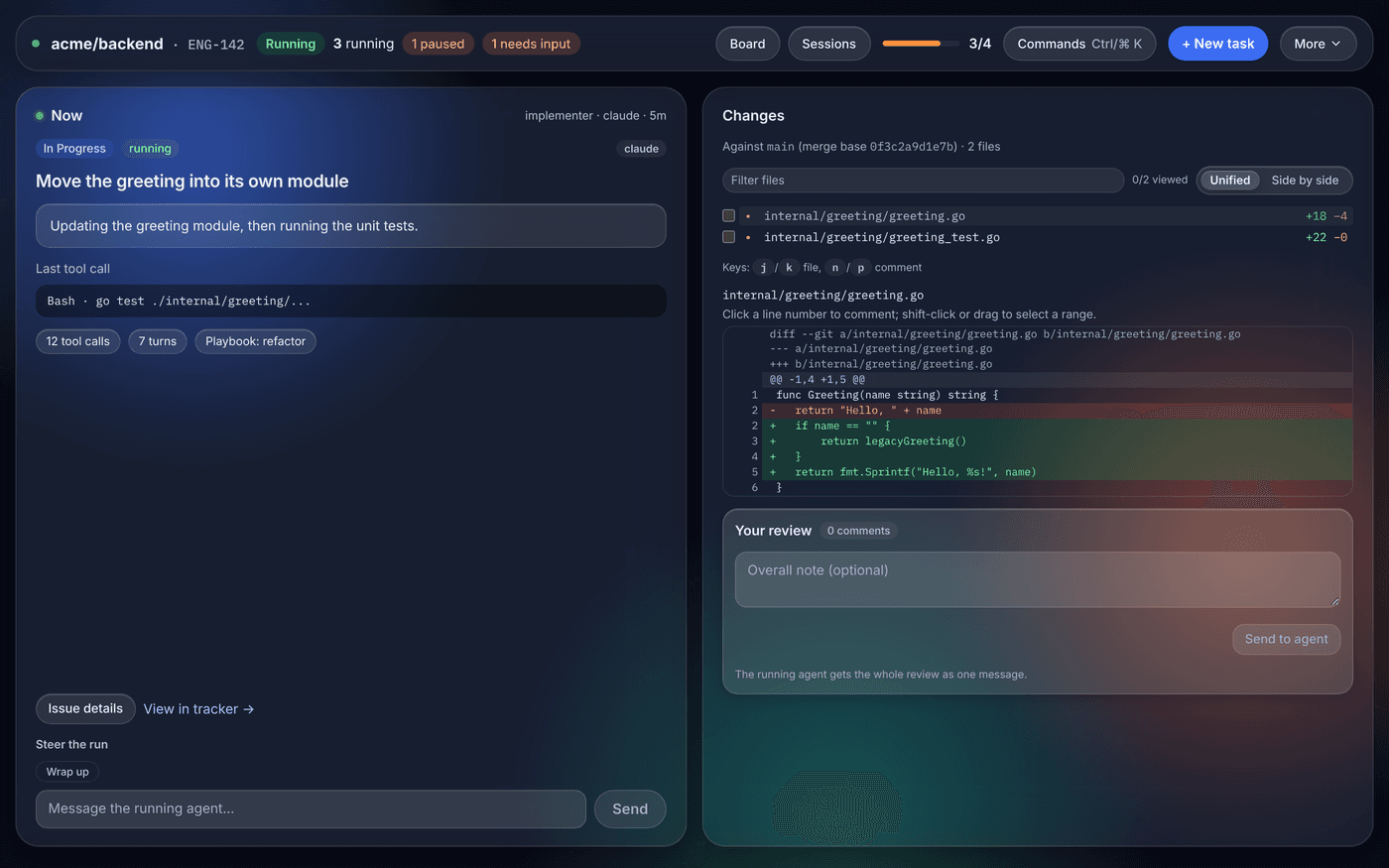
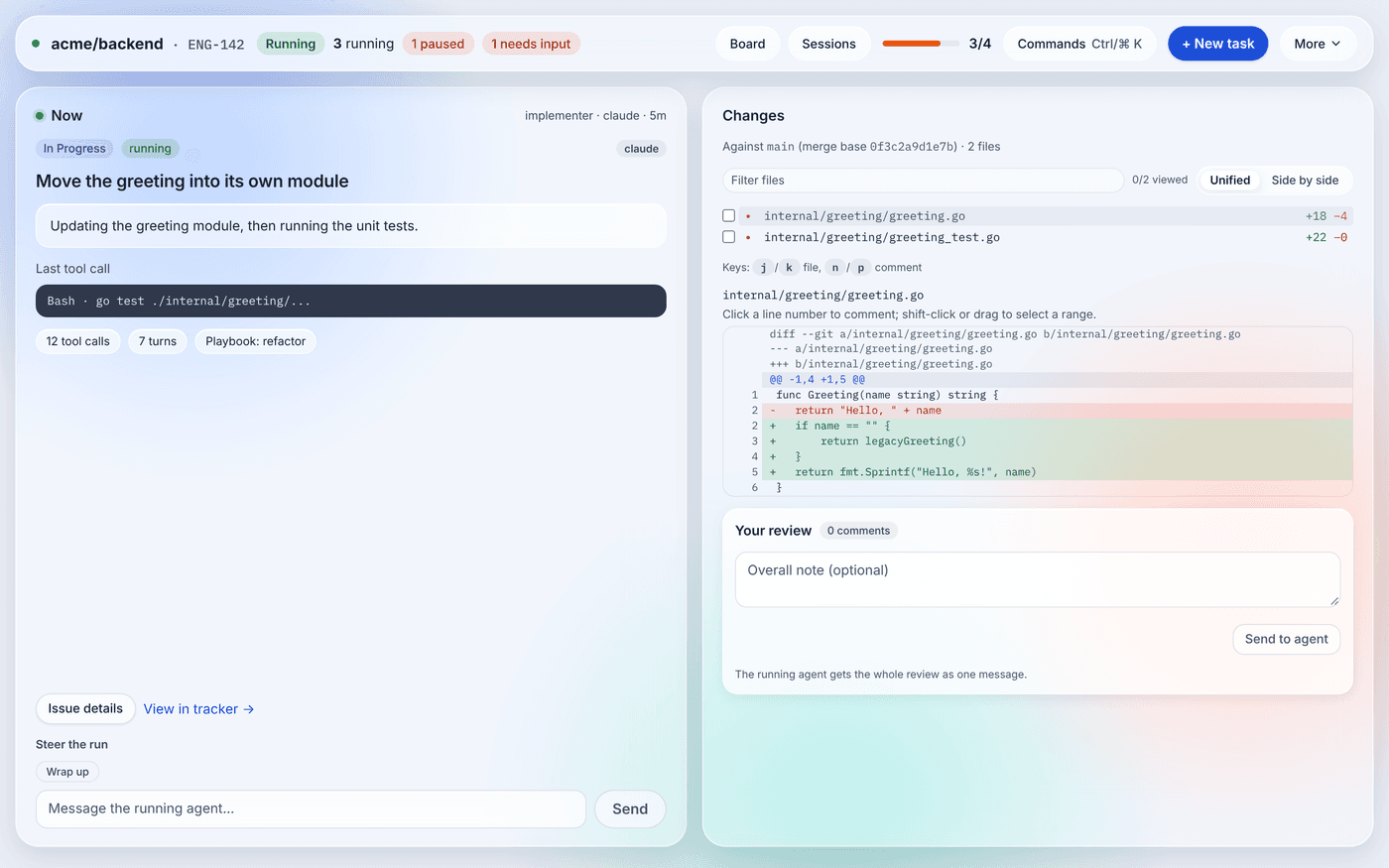
Section titled “Embedded dashboard”In an app window the dashboard keeps the sidebar and phone drawer it has in a browser, with one more entry, Issue view. It opens on the issue view: what the issue that needs you most is doing now, and its changes. The top bar reads project · ISSUE and has the status pills, Commands (⌘K) and + New task. It stays on one row: pills that do not fit fold into one +N pill (hover it for what it holds). Dashboard in the sidebar goes to the full board and stays there; a notification’s issue link still opens on the board with the issue’s detail panel.
The window’s initialization script, the one that hands over the token, also marks the page as the app’s (only on the daemon’s own address). The same dashboard in a browser has no Issue view entry and lands on the board.
Go menu
Section titled “Go menu”The Go menu (in the menu bar while a window is open; in each window’s menu bar on Linux and Windows) opens a page of the dashboard in the window in front, in place: Board, Issue View, Sessions, Timeline, Logs, Agents, Automations, Rules, Repo Analysis, Memory, Settings, and New Task… (the board with the New task form open). The app asks the page to navigate; the page accepts only paths of the dashboard itself. A dashboard served by an older daemon ignores the menu.
Sessions window
Section titled “Sessions window”Sessions… in the menu opens one window listing every running agent session of every daemon the app can read — local projects and remote daemons through their tunnels — grouped by daemon. A session waiting for input is badged needs input and listed first, and the daemon groups with a waiting session come first; the menu item shows how many are waiting, for example Sessions… (2 waiting). Each daemon reports the sessions on its own host: the app reads its GET /api/v1/sessions with the same token it uses for the daemon’s state, every few seconds while the window is open. A daemon the app cannot read shows why (for example token required); a daemon from a release without the Sessions API says so.
Use the arrow keys (or Home/End) to move between sessions and Return to open one. A session opens in its daemon’s dashboard window at the Sessions page (<dashboard>/sessions?id=<session>), with the token handed over as for Open Dashboard: its live transcript, and a composer to reply to a question or message the running agent (see Sessions panel). The dashboard refuses to be embedded in another page, so the session opens in the dashboard window rather than inside the Sessions window.
Claude Code and Codex sessions you started by hand on a daemon’s host — in a terminal in that project’s directory, within the last day — are listed too, after the daemon’s own sessions, with a dashed outline and started outside itervox (the summary line counts them). The daemon finds and reads them itself (see Sessions started by hand); for a remote daemon these are the sessions on the remote machine. One whose CLI may still be running says running, and hovering it shows why; otherwise it says exited. Opening one shows its transcript, read-only, in the daemon’s dashboard.
A session running in a tmux pane carries a tmux badge (hover it for the pane), highlighted when the dashboard can control it — a session the daemon started with New session, or one you run in tmux with sessions.tmux_control on (see Sessions in tmux). Under a daemon that has tmux, New session… opens its dashboard at the New session form. Under a daemon whose host has no tmux, the window says tmux not found — install it to control sessions from here, with the install command, instead.
Open in Terminal
Section titled “Open in Terminal”A tmux session the app may attach to — one the daemon started with New session, or one you started by hand in tmux while sessions.tmux_control is on — has Open in Terminal beside it. It opens the system terminal attached to that tmux session: Terminal on the Mac, $TERMINAL (a single program, run as <terminal> -e <command>) or else x-terminal-emulator on Linux, and Windows Terminal (wt) on Windows. For a local daemon the terminal runs tmux attach -t itervox-<id>; for a remote daemon reached over SSH it runs ssh -t <destination> tmux attach -t itervox-<id> with the connection’s own destination (so your ~/.ssh/config applies, and ssh may ask for a passphrase in the terminal); for a VM reached by SSH through IAP, gcloud compute ssh <vm> --tunnel-through-iap --command="tmux attach -t itervox-<id>" -- -t. The app only attaches: the daemon still owns the session, the dashboard keeps showing it, and closing the terminal detaches without ending it.
The action is absent for a session the app may not attach to: a dispatched run (it has no tmux session), a hand-started session without sessions.tmux_control, and a session whose tmux name is not a plain one (letters, digits, -, _). A daemon reached through a plain IAP port tunnel has no SSH to attach over, and a local daemon on Windows has no tmux; the window says so under the daemon instead. On Windows, run itervox in WSL and add it as an SSH remote. The command is passed to the terminal as separate arguments, built only from the checked session name and host; on the Mac the app writes a one-time .command file (readable only by you, deleted when it runs) because Terminal opens files, not argument lists.
The window only reads. It never types into a terminal or drives another app (Open in Terminal starts a new terminal window that you type into): messages and keys go through the daemon, which writes only to agent processes it started itself and — through tmux only — to sessions in tmux panes as described in Sessions in tmux.
System material
Section titled “System material”On a Mac and on Windows 11 the Sessions window sits on the system’s own material instead of the drawn translucent panels: the window is transparent there, the system draws the material behind the page, and the page lets it show through, with its panels lightly tinted. Only that page does this; the dashboard windows, their project tabs included, are opaque.
| System | Material |
|---|---|
| macOS 26 and later | Liquid Glass (NSGlassEffectView) |
| macOS 11 to 15 | Vibrancy (NSVisualEffectView): the HUD window material |
| Windows 11 | Mica |
| Windows 10, Linux | None: the drawn panels, as before |
With Reduce transparency or Increase contrast on (System Settings → Accessibility → Display on a Mac), or with Transparency effects off or a contrast theme on Windows, the app uses no material and the pages draw opaque panels. The app reads these settings when it opens a window, so close and reopen the window after changing one; the page also follows them itself where the webview reports them. If the system refuses the material, the page falls back to its drawn look.
Transparent windows on macOS use Tauri’s macOSPrivateApi option (macos-private-api), which relies on a private AppKit setting. Apple does not accept apps that use private APIs in the Mac App Store; the app is distributed outside it (the signed DMG and Homebrew), where this does not apply. Liquid Glass needs an app built with the macOS 26 SDK (Xcode 26); built with an older SDK, the app uses vibrancy on macOS 26 too.
Remote daemons
Section titled “Remote daemons”A daemon on a cloud VM or another machine shows in the menu like a local one, under Remotes. The app runs one tunnel per remote daemon, health-checks it, and restarts it when it drops — also after your Mac sleeps or changes network — so you never run a tunnel command or keep a browser tab around. Agent credentials (the Claude or Codex login, tracker keys) stay on the remote machine: the app only holds each daemon’s dashboard token.
Add a remote
Section titled “Add a remote”Choose Add Remote… and answer the prompts:
- How this Mac reaches the host
- SSH — a destination such as
me@build-boxor an alias from~/.ssh/config. Your key orssh-agentmust log in without a password prompt (the app has no terminal to type one in); connect once from a terminal first so the host key is known. - GCP IAP — SSH through IAP — the VM name, and optionally its zone and project (empty uses
gcloud’s defaults). This is how the deployment kit exposes a VM: no public IP, and only the IAP SSH firewall rule. It reaches a daemon bound to the VM’s loopback. - GCP IAP — direct port tunnel —
gcloud compute start-iap-tunnelto the daemon’s port. Use it only when the daemon listens on the VM’s network interface and a firewall rule lets IAP reach that port.
- SSH — a destination such as
- A name for the remote, shown in the menu.
- The command that runs itervox on the host —
itervoxby default. Use a full path when it is not on the remote PATH for non-interactive SSH, or for examplesudo -u itervox itervoxwhen the daemon runs as another user.
The app then runs itervox status --all --json on the host, over the same transport (ssh <destination> …, or gcloud compute ssh <vm> --tunnel-through-iap --command …) and lists every daemon running there. Choose the ones to add (all are selected); each becomes its own tunneled connection.
For each daemon whose API needs a token, the app reads the daemon’s auto-generated token file (token_file in status --json) over the same transport. A daemon with a pinned ITERVOX_API_TOKEN has no such file: the app asks you to type the token. Either way the token is stored in your login Keychain under service dev.itervox.desktop.remote-token, with the remote and the daemon’s WORKFLOW.md path on the host as the account — never the local port — so two remotes, or a remote and a local project with the same path, never share a token.
ssh and gcloud are found on the PATH your login shell sets up, the same way the daemon finds agent CLIs, so an app started from Finder finds a Homebrew or Cloud SDK gcloud too.
Tunnels
Section titled “Tunnels”| Transport | What the app runs |
|---|---|
| SSH | ssh -o BatchMode=yes -o ServerAliveInterval=15 -o ExitOnForwardFailure=yes -N -L 127.0.0.1:<local>:127.0.0.1:<port> <destination> |
| IAP (SSH) | gcloud compute ssh <vm> --tunnel-through-iap --zone=… --project=… -- -N -L 127.0.0.1:<local>:127.0.0.1:<port> (same SSH options) |
| IAP (port) | gcloud compute start-iap-tunnel <vm> <port> --local-host-port=localhost:<local> --zone=… --project=… |
<port> is the daemon’s port on the host (from status --json; 8090 for a daemon from an older release found without one). <local> is a free local port picked for that daemon alone: two daemons never share one, also while one of them is reconnecting. The app keeps a daemon on the same local port across reconnects and app restarts when it can, so an open dashboard window keeps working.
Every two seconds the app checks each tunnel: the process is alive, its local port accepts a connection, and the daemon answers GET /api/v1/health through it. A tunnel whose process exits is restarted after 1 s, then 2, 4, … up to 30 s between attempts. A running tunnel that fails three health checks in a row (after a 20-second start-up allowance, since an IAP handshake takes a few seconds) is restarted the same way.
When your Mac wakes from sleep or its network changes (Wi-Fi joined or left, a VPN up or down), every tunnel is checked at once, a tunnel that no longer answers is restarted at once, and a tunnel waiting between attempts retries at once. The app notices a wake from the jump between the wall clock and the clock that stops during sleep, and a network change from the change in your network interfaces’ addresses, both checked every two seconds.
In the menu
Section titled “In the menu”Each remote shows its state, for example Prod VM — 2/2 connected · 1 needs input or reconnecting… (1/2 connected), and lists its daemons with their agents and local port. For each daemon:
- Open Dashboard opens its dashboard through the tunnel (
http://127.0.0.1:<local>/) in a window, with the token handed over exactly as for a local daemon. - Open in Browser opens the same dashboard through the same tunnel in your default browser, logged in with the same token as
<tunnel>/?token=<token>, as for a local project. It is enabled while the daemon’s own tunnel is up, and disabled for a project reached through the host’s hub (see below). The token is the one the app holds for that daemon (read from its token file, or the one you entered), so if you entered a long-lived token, your browser’s history may keep it. - Repo Analysis opens that dashboard’s Repo Analysis page (
/repo) through the tunnel, the same way. - Memory opens that dashboard’s Memory page (
/memory) through the tunnel, the same way. - New Task… opens that dashboard’s New task form (
/?newTask=1) through the tunnel, the same way (in place when a window already shows it). - Sessions… opens the Sessions window, which lists remote daemons’ sessions too.
- Enter Token… / Update Token… reads the token file again, or asks for the token. Use it after the remote daemon restarted with a new auto-generated token (it then shows token required).
and for the remote:
- Reconnect restarts its tunnels now.
- Refresh Daemon List runs
itervox status --all --jsonon the host again: new daemons are added, gone ones removed. - Remove Remote stops its tunnels and deletes its tokens from the Keychain.
A remote machine with a hub
Section titled “A remote machine with a hub”When the daemons on the host form a hub of their own, one tunnel covers all of that machine’s projects. Add Remote… and Refresh Daemon List also run itervox hub --json on the host; when a hub serves there and some of the chosen daemons are its members, the app creates a hub token on the host over the same transport (itervox token create --hub --name itervox-desktop --scope operator, stored in the Keychain under the remote’s …/hub account) and runs one tunnel to the hub instead of one per member. Every member is then read through the hub’s proxy (/hub/p/<project>/api/v1/...), and Open Dashboard, Repo Analysis, Memory and notification links open the member’s dashboard on the hub (http://127.0.0.1:<local>/hub/p/<project>/) with the hub token. The hub token is an operator token, so you can answer questions and act on issues there; project administration (settings, tokens) is not reachable through a hub — open that daemon from the host. Open in Browser is disabled for a member while it is reached through the hub: the hub token is the app’s own credential (operator scope, valid for every member, kept until you remove the remote), and a browser would keep it in its history, so the app does not hand it to one. Use Open Dashboard for such a member; while the hub is down and the member has its own tunnel again, Open in Browser works with that member’s own token. The remote’s submenu shows hub · 3 projects through one tunnel, and each member’s line says via hub. The hub’s tunnel is health-checked on GET /hub/api/v1/health.
Daemons that are not members (--no-hub, older releases, or a daemon running with server.allow_unauthenticated, which a hub never proxies) keep their own tunnels. Each member’s own token is still read and stored when the remote is added: if the hub’s tunnel stops answering (the hub stopped and none took over on its port), every member gets its own tunnel again, until the hub answers. An older itervox on the host, or a host where the hub token cannot be created, keeps a tunnel per daemon.
Notifications work for remote daemons too: a question or a failed run on a connected remote daemon raises one, and clicking it opens the issue through the tunnel. Remote daemons cannot be started or stopped from the app; that stays with the host’s service manager. Quitting the app closes its tunnels (the remote daemons keep running).
No terminal needed
Section titled “No terminal needed”A Mac app started from Finder or at login gets launchd’s minimal PATH, which does not include claude or codex installed through Homebrew, nvm, asdf or volta. The daemon resolves PATH from your login shell when it was not started from a terminal (Login-shell PATH); itervox status --json reports "path_source": "login_shell" for such a daemon. The app itself does not use PATH: it runs the daemon bundled next to its own executable (Itervox.app/Contents/MacOS/itervox).
| Path | What |
|---|---|
~/Library/Application Support/dev.itervox.desktop/projects.json | The projects you added, and the project tabs’ order, pins and compact setting |
~/Library/Logs/dev.itervox.desktop/daemons/ | Output of daemons the app started (the daemons’ own logs stay under ~/.itervox/logs/) |
Login Keychain, dev.itervox.desktop.supervisor-token | One supervisor token per project |
~/Library/Application Support/dev.itervox.desktop/remotes.json | The remotes you added: transport, host, their daemons and the local port each last used (no tokens) |
~/Library/Logs/dev.itervox.desktop/tunnels/ | Output of each tunnel process (ssh / gcloud errors) |
Login Keychain, dev.itervox.desktop.remote-token | One token per remote daemon (account: remote/<remote>/<WORKFLOW.md path on the host>) |
/usr/local/bin/itervox or ~/.local/bin/itervox | The command-line tool, when installed from the menu: a symlink into the app |
Troubleshooting
Section titled “Troubleshooting”- The app seems not to start. Its only sign of life after the first launch is the menu-bar icon, which a full menu bar can hide behind a MacBook’s notch. Open Itervox again from Finder or Spotlight to get a window (First launch), and hide other menu-bar items to make room for the icon.
- See what the app sees. Quit it and run
ITERVOX_DESKTOP_DEBUG=1 /Applications/Itervox.app/Contents/MacOS/itervox-desktopin a terminal: every refresh prints each project’s state and every notification. - Keychain prompt after a rebuild. A build from source gets a new code signature on every build, so macOS may ask once whether the new build may read the tokens it stored. Choose Always Allow. Signed releases keep their identity across updates.
- “Itervox” cannot be opened, or macOS says it cannot check it for malicious software. The app is unsigned: an
-unsignedrelease file, a CI build, or a build from source copied from another Mac. Right-click → Open no longer works on macOS 15 and later; use System Settings → Privacy & Security → Open Anyway, or remove the quarantine flag withxattr -dr com.apple.quarantine /Applications/Itervox.app, as described (with its caution) in Opening an unsigned build. To check whether a copy is a signed release, runspctl --assess --type execute -vv /Applications/Itervox.app: a signed, notarized build printssource=Notarized Developer ID. - The menu says “Last update check failed” on an unsigned release. The app checks for an update manifest that only a signed release publishes, so the check finds none. Nothing is wrong with the app; install new versions by hand until a signed release is out (Updates).
- The menu says “Updates off: this build has no update key”. The app was built from a
tauri.conf.jsonwith no updater public key (a fork, or a build before 0.3.3), so it never checks for updates. Install new versions by hand (Updates). - macOS says “Itervox” is damaged and can’t be opened. A build from before 0.3.3 that was not signed at all reads as damaged once downloaded. Remove the quarantine flag with
xattras in Opening an unsigned build, or install a newer release. - Update failed. The menu shows the reason and offers Install and Restart again. An app outside
/Applicationsthat you cannot write to (another user’s, or a read-only volume) cannot replace itself; move it to/Applications. Last update check failed usually means the Mac is offline; the next check runs on schedule. - A project says token required. Its daemon was started outside the app with a pinned
ITERVOX_API_TOKEN. Stop it and start it from the app. - A remote keeps reconnecting. The daemon’s line in the remote’s submenu shows the last error from
sshorgcloud; the full output is in~/Library/Logs/dev.itervox.desktop/tunnels/. Run the transport’s command from the table above in a terminal to see the prompt or error it hits — typically an unknown host key, a key that needs a passphrase not inssh-agent, orgcloud auth loginhaving expired. - Add Remote finds no daemons. The listing runs
itervox status --all --jsonas the SSH user. A daemon running as another user is only found by process scan; set the remote’s itervox command tosudo -u <user> itervox.
The Linux app is the same app in the system tray, for x86_64 and arm64.
Install on Linux
Section titled “Install on Linux”Download from the latest release:
- AppImage —
Itervox_<version>_amd64.AppImage(or_aarch64). Make it executable (chmod +x) and run it; it needs no install. The daemon is inside it. - Debian / Ubuntu —
Itervox_<version>_amd64.deb(or_arm64):sudo apt install ./Itervox_<version>_amd64.deb. It installs the app asitervox-desktopand its daemon as/usr/bin/itervox, which is then also youritervoxcommand.
The app needs WebKitGTK 4.1 and an AppIndicator library (libayatana-appindicator3-1), which the .deb depends on and current desktop distributions ship. The tray icon shows on KDE Plasma, Xfce, Cinnamon and most other desktops as it is; GNOME shows tray icons only with the AppIndicator and KStatusNotifierItem Support extension (preinstalled on Ubuntu). There is no click-to-refresh on Linux — an AppIndicator does not report the pointer — so the tray refreshes on its 3- and 15-second schedule and when a window is focused. The number of issues waiting for input shows as a label next to the icon where the panel supports one.
On Linux
Section titled “On Linux”- Command-line tool. Install Command-Line Tool… links
~/.local/bin/itervoxto the app’s daemon, never/usr/local/bin(no root needed), and says so when~/.local/binis not on yourPATH. From the.debthe link points at/usr/bin/itervox. An AppImage mounts itself at a new temporary path every time it starts, so the app copies its daemon to~/.local/share/itervox/bin/itervoxand links that; when a newer AppImage starts, it refreshes the copy, so the command follows the app. - Start at Login. The tray’s Start Itervox at Login writes an XDG autostart entry,
~/.config/autostart/itervox-desktop.desktop(or under$XDG_CONFIG_HOME), that every freedesktop session runs at login; for an AppImage it runs the AppImage file. Choose it again to remove the entry. - Updates. The app checks the latest release 10 seconds after it starts and every 6 hours, and when one is newer the tray shows Update available — Open the Release Page…, which opens the release in your browser. It does not update itself: download the new AppImage or
.deb. Running daemons keep running on the version they were started with until you restart them. - Questions. Add Remote… asks its questions with
zenity(GNOME and most desktops) orkdialog(KDE, preferred in a KDE session). Install one of them if the app says neither was found; the.debrecommendszenity. - Tokens. Supervisor and remote tokens go to the Secret Service (GNOME Keyring, KWallet) under the same service names as on the Mac. In a session without one, they stay in memory until the app quits: daemons it started keep running, and after a restart a daemon started by the app reads as token required until you restart it from the app.
- Shell PATH.
sshandgcloudare found on the inheritedPATH, then on thePATHyour login shell (bash, zsh or fish) sets up, then in/snap/bin,/usr/local/binand~/google-cloud-sdk/bin.
| Path (Linux) | What |
|---|---|
~/.config/dev.itervox.desktop/projects.json, remotes.json | The projects and remotes you added |
~/.local/share/dev.itervox.desktop/logs/daemons/, …/tunnels/ | Output of daemons the app started, and of each tunnel |
~/.local/bin/itervox | The command-line tool, when installed from the tray |
~/.config/autostart/itervox-desktop.desktop | Start at Login, when on |
Build it on Linux
Section titled “Build it on Linux”Install Rust, Go, Node.js 20 with pnpm 10, and the WebKitGTK, GTK and AppIndicator development packages (Debian and Ubuntu: sudo apt install libgtk-3-dev libwebkit2gtk-4.1-dev libayatana-appindicator3-dev librsvg2-dev patchelf), then make desktop. It builds the dashboard, the daemon for your architecture as the app’s sidecar, and desktop/src-tauri/target/release/bundle/appimage/*.AppImage and bundle/deb/*.deb.
Windows
Section titled “Windows”The Windows app is the same app in the notification area, for x86_64, installed with Itervox_<version>_x64_en-US.msi (per machine) or Itervox_<version>_x64-setup.exe (NSIS, per user, no administrator rights) from the latest release. The installers are not code-signed yet, so Windows SmartScreen asks before the first run: choose More info → Run anyway.
Windows: local projects
Section titled “Windows: local projects”Itervox’s daemon does not run natively on Windows yet, so this app has no local daemon of its own. The tray says Local projects need WSL or a remote daemon — Read the Guide…, and Start or Add Project… explain the same. What works:
- Remote daemons and hubs. Add Remote… connects to daemons on another machine or a VM over SSH or IAP exactly as on the Mac (Remote daemons), including a remote hub. Windows ships OpenSSH (
ssh.exe); for IAP install the Google Cloud CLI. - WSL. Run itervox inside WSL (the Linux build, for example the
.debor the release binary) and add that WSL distribution as an SSH remote — enable the OpenSSH server in it and useyou@localhost(with the port you gave it) as the destination. Its dashboards then open in the app’s windows through the tunnel.
When a release bundles a native itervox.exe, the installers carry it as the app’s daemon and local projects work as on the Mac and Linux, with nothing to change in the app.
On Windows
Section titled “On Windows”- Command-line tool. Add Command-Line Tool to PATH… adds the app’s install directory, where
itervox.exesits, to your userPATH(HKEY_CURRENT_USER\Environment), and tells running programs, so a new terminal findsitervox. It appears once the app bundlesitervox.exe. - Start at Login. Start Itervox at Login sets the value
Itervoxunder the registry Run keyHKEY_CURRENT_USER\Software\Microsoft\Windows\CurrentVersion\Run; choose it again to remove it. Settings → Apps → Startup shows it too. - Updates. As on Linux: Update available — Open the Release Page… opens the release in your browser; the app does not update itself.
- Questions. Add Remote… asks with small Windows dialogs (PowerShell and Windows Forms, built into Windows).
- Tokens. Remote tokens go to the Windows Credential Manager under the same service names as on the Mac.
- Notification area. Windows shows no text beside a tray icon, so the waiting count is in the icon’s tooltip.
| Path (Windows) | What |
|---|---|
%APPDATA%\dev.itervox.desktop\projects.json, remotes.json | The projects and remotes you added |
%LOCALAPPDATA%\dev.itervox.desktop\logs\ | Output of daemons the app started (daemons\) and of each tunnel (tunnels\) |
Platform differences
Section titled “Platform differences”Each macOS-only part of the app, and what Linux and Windows do instead:
| On the Mac | Linux | Windows |
|---|---|---|
| Menu-bar icon (template image, tinted by macOS) | Full-colour tray icon (AppIndicator) | Full-colour notification-area icon |
| Waiting count as the menu-bar title | AppIndicator label, where the panel shows one | In the tooltip (no text beside the icon) |
| Refresh when the pointer reaches or clicks the icon | Not on this platform: the 3 / 15-second schedule and window focus | As on the Mac |
| No Dock icon until a window opens (activation policy) | Not on this platform: windows show in the taskbar while open | Not on this platform: as on Linux |
| Opening the app again while it runs shows a window (minimized window, first running dashboard, else the welcome window) | Not on this platform: the welcome window opens on a first launch only | As on Linux |
| Projects menu in the app menu bar, ⌘ shortcuts | Projects menu in each dashboard window, Ctrl shortcuts | As on Linux |
Prompts through osascript | zenity or kdialog | PowerShell and Windows Forms |
| Keychain | Secret Service, or memory without one | Credential Manager |
| Signed self-update | Link to the release page | Link to the release page |
Install Command-Line Tool…: /usr/local/bin or ~/.local/bin symlink | ~/.local/bin symlink (an AppImage’s copy) | Install directory added to the user PATH |
| Start at Login: System Settings → Login Items (no tray item) | Start Itervox at Login: XDG autostart entry | Start Itervox at Login: registry Run key |
Daemon bundled in the app; Stop sends SIGTERM | Same | No native daemon yet (local projects); with itervox.exe, Stop runs itervox stop |
Wake detected from the clocks, network change from getifaddrs | Same | Network change from the default routes’ source addresses; a wake that keeps the address is caught by the tunnel health checks |
open for logs and links | xdg-open | explorer |
Open in Terminal: Terminal, through a one-time .command file | $TERMINAL, else x-terminal-emulator, with -e | Windows Terminal (wt new-tab); remote daemons only |
| Liquid Glass (macOS 26) or vibrancy behind the Sessions window (System material) | Not on this platform: the drawn panels | Mica on Windows 11; the drawn panels on Windows 10 |
| Tray Quit Itervox with ⌘Q | Ctrl+Q, shown and bound only where the panel’s menu supports shortcuts (AppIndicator menus often do not) | Ctrl+Q |
Development
Section titled “Development”The app’s logic — parsing status --json, merging the project list, diffing refreshes, detecting notification events, building start and stop commands, the token store and the project-list file, the remote connections, tunnels, health checks and wake/network detection, reading and grouping every daemon’s sessions for the Sessions window (sessions.rs), the project tabs of the dashboard windows (rail.rs, its page desktop/dist/tabs.html), which system material goes behind the Sessions window (material.rs, applied by app_material.rs), update version checks, the update manifest, schedule and menu state, and the command-line tool link — is plain Rust in desktop/src-tauri/src/ with unit tests that run on macOS, Linux and Windows; app.rs (with app_dash.rs for the dashboard windows) is the Tauri glue. What differs per platform is in platform.rs and autostart.rs, keyed by the target OS so the tests check every platform’s choice from any one. CI runs the tests and builds unsigned bundles on macOS, Linux (x86_64 and arm64) and Windows.
make desktop-test # fmt, clippy -D warnings, unit tests, end-to-end tests against a real daemon, and dry runs of the release scripts, the Homebrew cask's included (needs jq)The end-to-end tests start a real daemon the way the app does, list it, read its state with the supervisor token, restart and stop it, make a stand-in agent ask a question and check the notification link and that the Sessions window lists the waiting session (keyed by the agent CLI’s session ID) and opens its /sessions?id= page, and start a daemon with launchd’s environment to check the login-shell PATH. The remote tests (tests/remote_e2e.rs) put a stand-in ssh and gcloud on PATH that relay to this machine: they add an SSH and an IAP remote against real daemons, list their daemons, read their tokens and open their dashboards through the tunnels, kill tunnel processes and check they come back, simulate a wake and a network change, and check two remotes never share a port or a token. To run the app against a daemon binary of your choice, set ITERVOX_DESKTOP_DAEMON to its absolute path.